Plugin and system settings that matter for DSA
DSA has two kinds of settings, and they fail in different ways:
- Database settings are saved by the web console into MongoDB. Most are read when they are used, so a saved change applies to the next request or the next job.
- Deployment settings are environment variables, image versions, and volume
mounts in
docker-compose.yml. A running container does not pick up a changed file. You must recreate the affected container.
This page covers the settings an operator actually touches, what they affect, and whether a restart is needed. It does not list every Girder setting; the upstream Girder documentation owns the generic ones.
Change one setting at a time
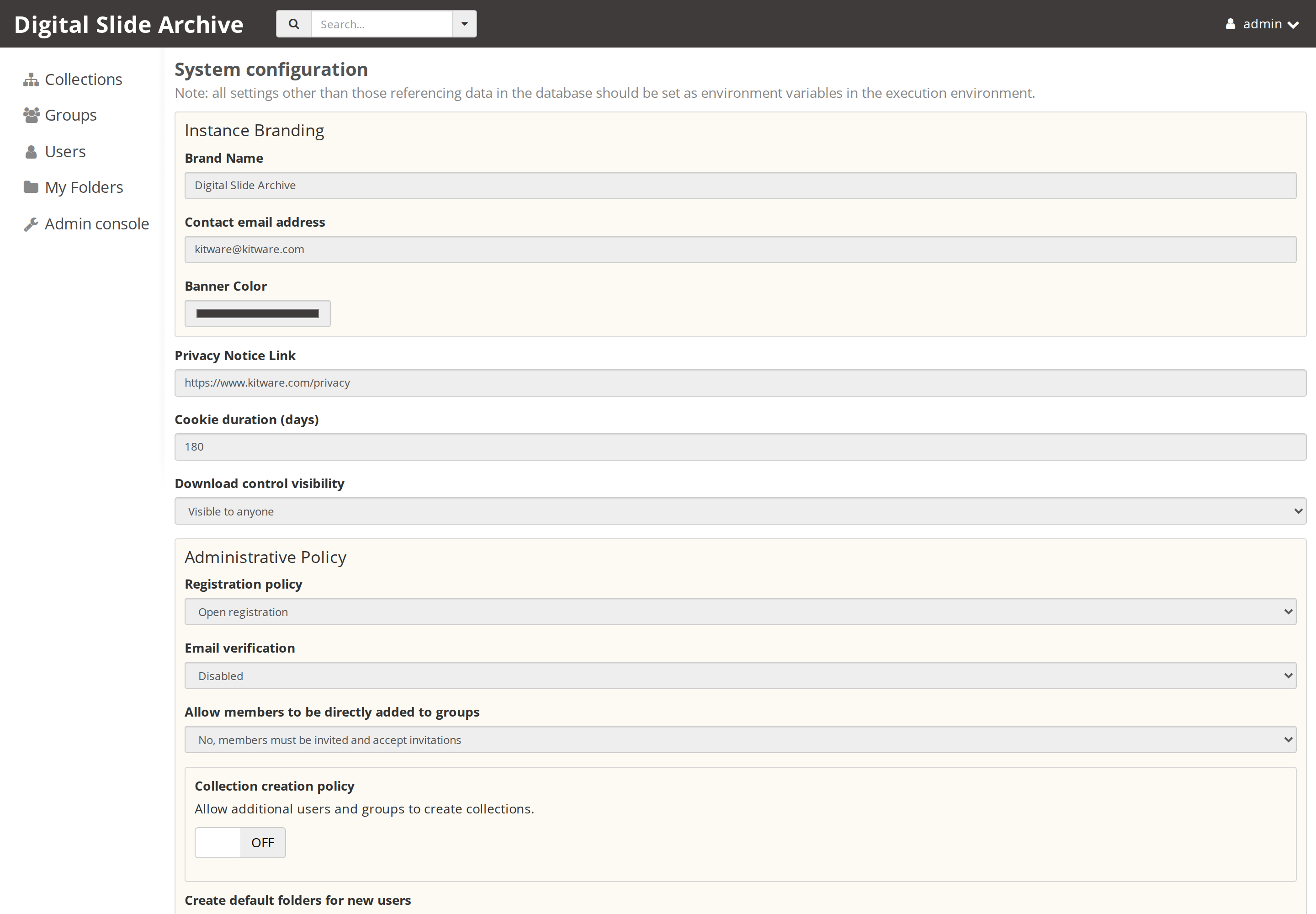
Open Admin console → Server configuration for the core settings and Admin console → Plugins for plugin settings.
A safe routine:
- Record the old value and why you are changing it.
- Change one group of related values.
- Save, then verify the effect in a new browser tab or with a new job.
- If nothing changed, check whether the setting is a route or an environment value before restarting anything.
- If the change is risky (anonymous access, password login, root URL, current assetstore), test it in a maintenance window and keep a way back in.
What needs a restart
The short version:
| Setting or change | Where it lives | Applies | Restart needed? |
|---|---|---|---|
| Brand name, contact email, banner color, privacy link, cookie duration, download visibility | Server configuration | Next page load or new session | No |
| Registration policy, email verification, direct group addition, default folders | Server configuration | Next registration or invitation | No |
| Collection creation policy | Server configuration | Next request | No |
| API keys, password login, anonymous access | Server configuration | Next authentication request | No |
| SMTP host, port, encryption, username, password | Server configuration | Next email | No |
| Server root URL, upload chunk size, CORS | Advanced settings | Next request | No, but restart the reverse proxy if you changed the proxy |
| HistomicsUI Root Path or Alternate Root Path | Plugins → HistomicsUI | Plugin routes | Yes — restart Girder |
| HistomicsUI brand, help, login text, annotation defaults, panel layout, quarantine folder, ingest behavior | Plugins → HistomicsUI | Next request | No |
| large_image auto-use, image size limit, thumbnail count, viewer, ICC, metadata fields | Plugins → Large image | Next request | No |
| large_image Redis tile cache backend, Redis URL, tile-source maximum | Compose environment | Process start | Yes — recreate Girder |
| Slicer CLI Web task folder, metadata behavior, worker configuration item | Plugins → Slicer CLI Web | Next task | No |
| Worker API URL and direct-path behavior | Plugins → Worker | Next job | No |
| Celery broker URL and result backend | Compose environment on Girder and worker | Process start | Yes — recreate Girder and worker |
| Worker concurrency | Compose environment on worker | Process start | Yes — recreate worker |
| DICOMweb server URL, QIDO/WADO prefixes, authentication | Assetstores | New assetstore requests | No |
| Plugin package added or removed | Image and provisioning | Process start | Rebuild or recreate the image |
docker compose restart girder restarts a container with its current
configuration. It is the right command after changing a database setting that is
read at plugin load, such as the HistomicsUI root path.
docker compose up -d recreates containers whose Compose definition changed. It
is the right command after changing an environment variable, an image tag, or a
volume mount. Use it for the Redis cache, Celery, and worker-concurrency rows
above.
System configuration
The Server configuration page groups the core settings. The page warns that settings not tied to database data should be set as environment variables in the execution environment. In practice, use the console for runtime policy and branding, and use Compose for anything that describes the deployment.
Instance branding
The brand name, contact email, banner color, privacy notice link, cookie duration, and download-control visibility are display and session settings. They apply to the next page load or new sign-in. Changing the brand name is a safe first change to test that your admin account can save settings.
Download control visibility controls whether the download buttons are shown to anyone, logged-in users, admins, or nobody. It is a UI control, not a file permission. A determined user with API access is still governed by the access rules on the file; use the sharing model in Permissions and access control for real restrictions.
Administrative policy
The same page contains the policies that affect new accounts and new collections:
- Registration policy — open registration, closed registration, or admin approval.
- Email verification — required, optional, or disabled.
- Allow members to be directly added to groups — whether group administrators and moderators can add people without an invitation.
- Collection creation policy — whether users or groups beyond admins may create collections.
- Create default folders for new users — no folders, or the
PublicandPrivatepair. - Enable API keys, Enable password login, Disable anonymous access — authentication controls.
These are read when the relevant action happens. They do not need a restart. Treat Disable anonymous access and Enable password login as lockout risks: make sure you have a working admin session and another authentication method before turning off password login.
Email
Email Creation and Email Delivery set the sender and SMTP server used for invitations, password resets, and verification messages. The values are read when an email is sent, so no restart is needed. If mail fails, the job or request log shows the SMTP error; the container log is often more informative than the console.
Advanced settings
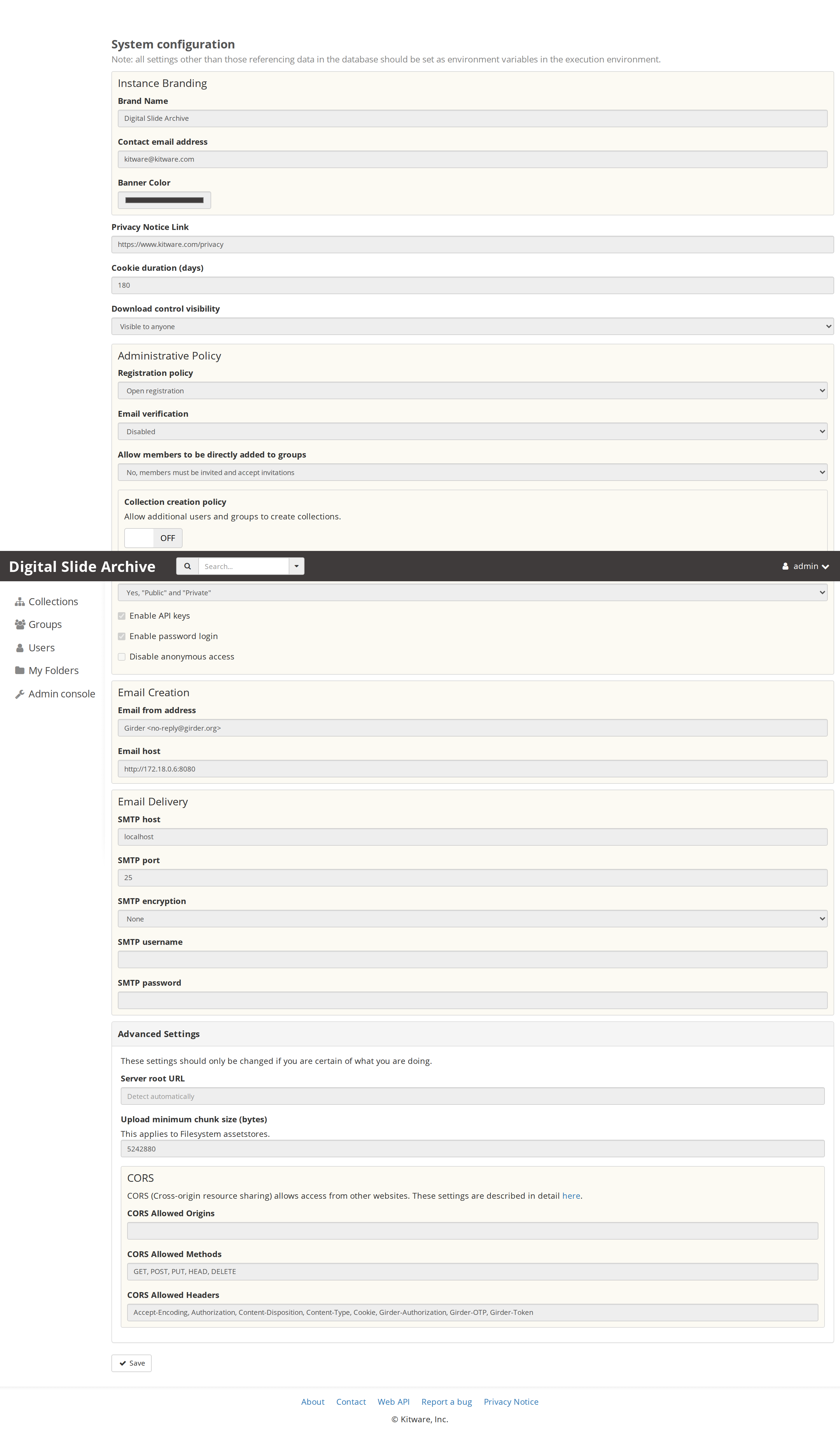
- Server root URL is used to build absolute links. Leave it empty when the instance is served from the root of its host; set it when a reverse proxy publishes DSA under a path or a different external URL.
- Upload minimum chunk size applies to new uploads to filesystem assetstores. The default is 5 MiB.
- CORS controls which external origins may call the API. Restrict it when a separate web application calls DSA from a browser; do not set a wildcard on a public instance unless you intend to allow every origin.
These values are read per request. If you change the reverse proxy at the same time, restart the proxy as well; the Girder restart alone will not change the proxy's routing.
large_image and thumbnail caching
Open Admin console → Plugins → Large image (the gear next to Large Image).
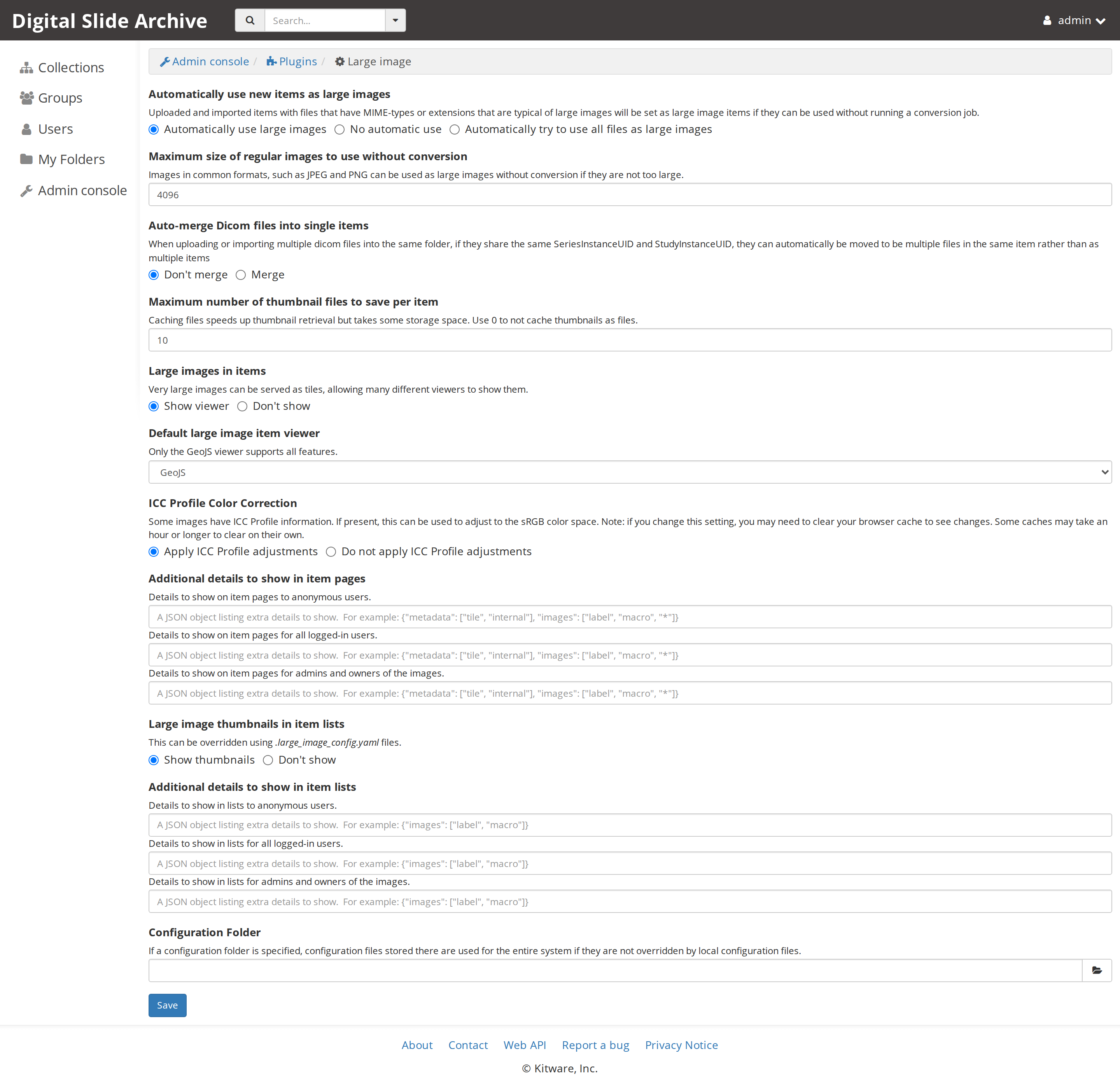
The settings most operators touch:
| Setting | Default | What it does |
|---|---|---|
| Automatically use large images | On | Marks compatible uploads and imports as large images without a conversion job |
| Maximum size of regular images to use without conversion | 4096 pixels |
Allows ordinary JPEG/PNG files up to this size to be used directly |
| Maximum number of thumbnail files to save per item | 10 |
Caches up to this many thumbnail files per item; 0 disables file caching |
| Default large image item viewer | GeoJS | Viewer used for large images; only GeoJS supports all features |
| Apply ICC Profile adjustments | On | Converts images with an ICC profile to sRGB |
| Show thumbnails / Show viewer | On | Controls item-list thumbnails and the item viewer |
These are database settings read when thumbnails and viewers are requested. Saving them does not require a restart. Changing the ICC setting can require a browser cache clear before the change is visible, as the page itself notes.
The thumbnail file cache on this page is not the same as the tile cache. The tile cache is set in Compose:
environment:
  LARGE_IMAGE_CACHE_BACKEND: redis
  LARGE_IMAGE_CACHE_REDIS_URL: redis:6379
  LARGE_IMAGE_CACHE_TILESOURCE_MAXIMUM: 64
LARGE_IMAGE_CACHE_BACKENDselects the cache implementation. The stock stack uses theredisservice.LARGE_IMAGE_CACHE_REDIS_URLis the Redis address as seen from the Girder container.LARGE_IMAGE_CACHE_TILESOURCE_MAXIMUMcaps how many tile sources are cached. Raising it uses more Redis memory; lowering it reduces memory and may make revisiting large slides slower. The cache documentation treats 2 as the minimum useful value.
Change these in docker-compose.yml and run docker compose up -d girder. They
are read when the Girder process starts, not from the console.
Verified behavior
On the live instance, large_image.max_thumbnail_files was changed from 10
to 11 through the console's save path, read back from
/api/v1/large_image/settings as 11, and then restored to the default 10.
No container was restarted. This confirms that the large-image display and
thumbnail settings are runtime settings, unlike the HistomicsUI root path.
HistomicsUI
Open Admin console → Plugins → HistomicsUI.
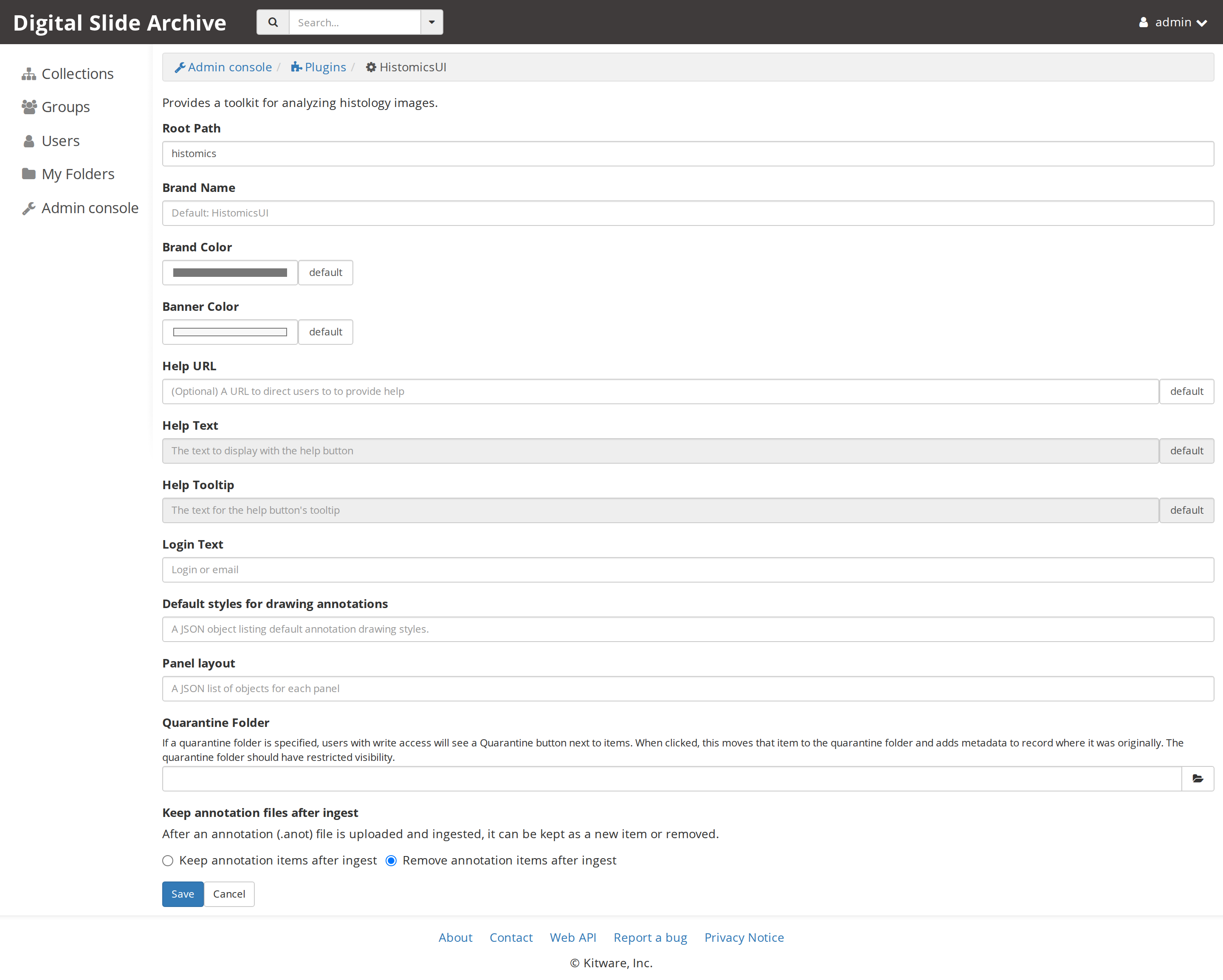
The display settings are runtime settings:
- Brand name, brand color, banner color.
- Help URL, help text, help tooltip, login text.
- Default annotation drawing styles and panel layout (JSON values).
- Quarantine folder.
- Keep or remove annotation files and items after ingest.
The two URL settings are different:
- Root Path is the URL prefix where HistomicsUI is mounted. The stock value
is
histomics. - Alternate Root Path is an additional mount. The stock value is
histomicstk.
Girder mounts these paths when the plugin loads. Changing either one requires:
Changing the root path changes every HistomicsUI URL and any external link that points at the old path. Do it deliberately, and update bookmarks, reverse-proxy rules, and links in other applications.
Quarantine Folder must be an existing folder. It should have restricted visibility, because the quarantine action moves an item there and records where it came from in item metadata. Setting the field does not create the folder.
Keep annotation files after ingest and the matching item setting control
whether the uploaded .anot files remain as items after HistomicsUI ingests
annotations. The stock configuration removes the annotation items after ingest
(histomicsui.delete_annotations_after_ingest: true in provision.yaml). This
is a data-retention decision: keeping every uploaded annotation file costs
storage and can clutter collections.
Slicer CLI Web
Open Admin console → Plugins → Slicer CLI Web.
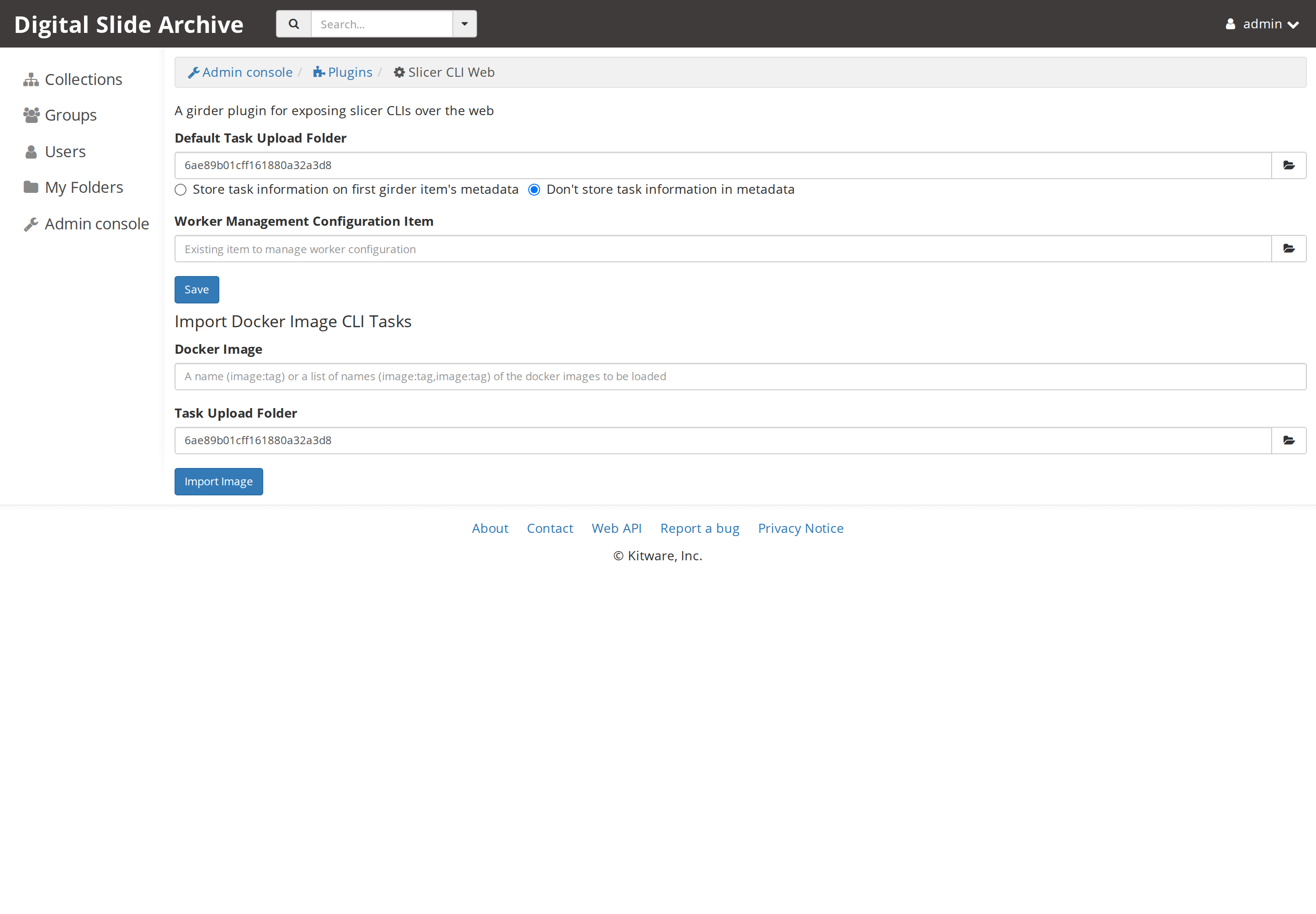
- Default Task Upload Folder is the Girder folder used for task inputs and
outputs when a task does not choose another folder. The stock provisioning
points it at the
Slicer CLI Web Tasksfolder in theTaskscollection. - Store task information on first Girder item's metadata records the task document in item metadata. The alternative is not to store it. This is a provenance choice, not a performance setting.
- Worker Management Configuration Item is an optional item used to manage worker configuration. Most single-machine installs leave it empty.
- Import Docker Image CLI Tasks pulls a Docker image and ingests its Slicer
CLI task descriptions. Enter an
image:tagvalue and the task upload folder. This action needs the Docker socket mount that the stock Compose file provides. A failed pull is usually a Docker daemon, network, or disk-space problem, not a Girder setting.
These settings are read when a task is submitted. They do not need a restart.
The task folder must exist and be writable by the user submitting the task. Creating a folder is not part of this page; use the collection tree or the REST API.
Worker and RabbitMQ
The Worker plugin page is small:
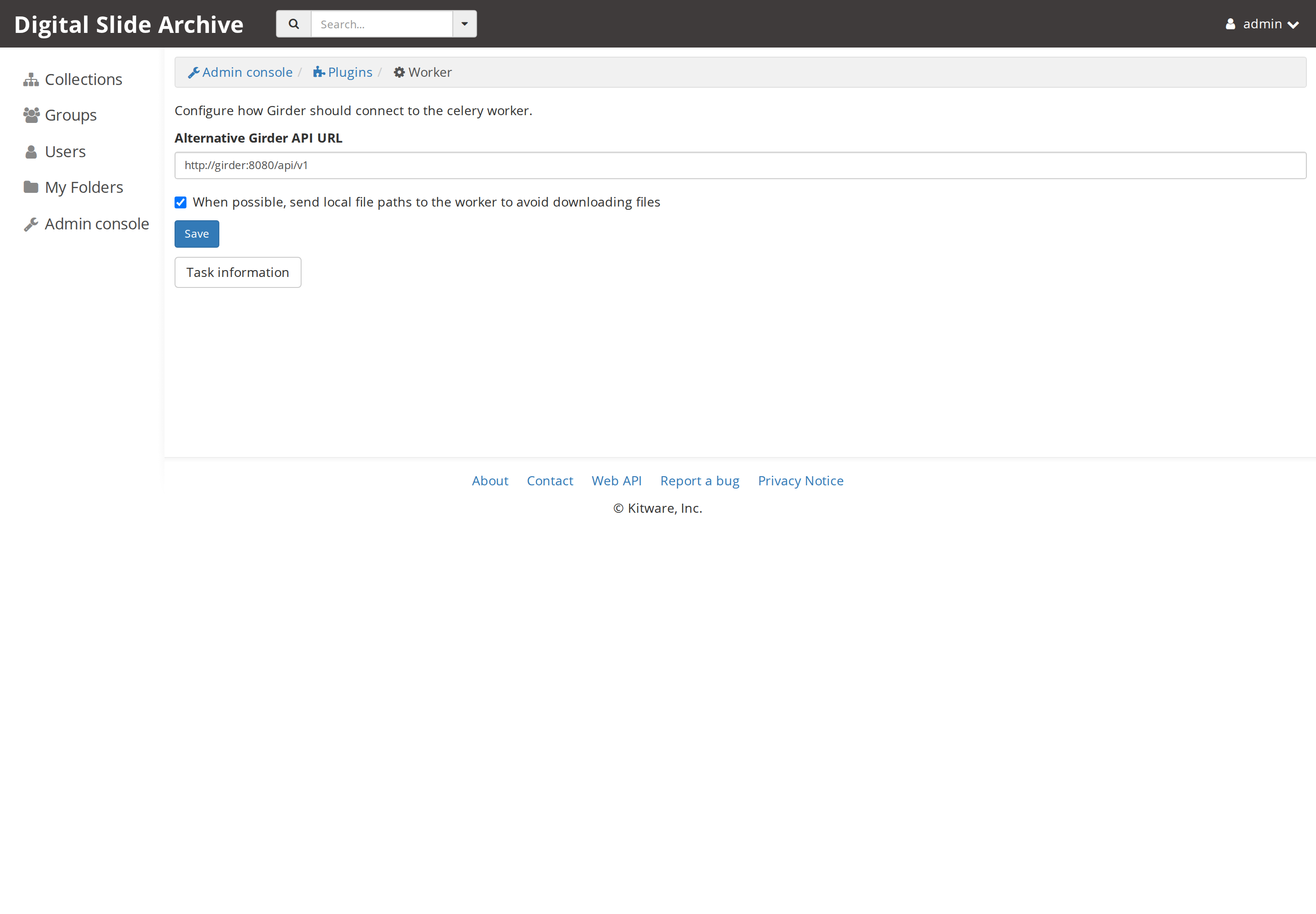
- Alternative Girder API URL tells the worker how to reach Girder. The stock
stack uses
http://girder:8080/api/v1, the Compose service name. - When possible, send local file paths to the worker to avoid downloading files enables the direct-path behavior. The stock stack leaves it enabled. It only works when Girder and the worker see the same host paths, which is true for the bind mounts in the stock stack.
Both are database settings read for new job submissions. They do not need a restart. The worker process itself gets its broker connection from Compose:
environment:
  CELERY_BROKER_URL: amqp://guest:guest@rabbitmq/
  CELERY_RESULT_BACKEND: rpc://guest:guest@rabbitmq/
The same two variables are set on the worker service. DSA_WORKER_CONCURRENCY
on the worker sets the Celery concurrency; the stock value is 2.
If you change the broker URL, the credentials, or the concurrency:
docker compose restart does not apply the new environment. If you also change
RABBITMQ_DEFAULT_USER or RABBITMQ_DEFAULT_PASS, recreate the rabbitmq
service too, and update both Celery URLs at the same time. A mismatch between
the broker credentials and the Celery URL leaves jobs queued and the worker
reconnecting.
The stock Compose file does not publish RabbitMQ's port to the host, and the
guest account is only suitable for the internal Compose network. Do not expose
the broker to a shared network without changing the credentials and the network
boundary.
DICOMweb
DICOMweb is a plugin in the DSA stack, but it has no Configure Plugin page on the Plugins screen. It is configured as an assetstore, one per DICOMweb server:
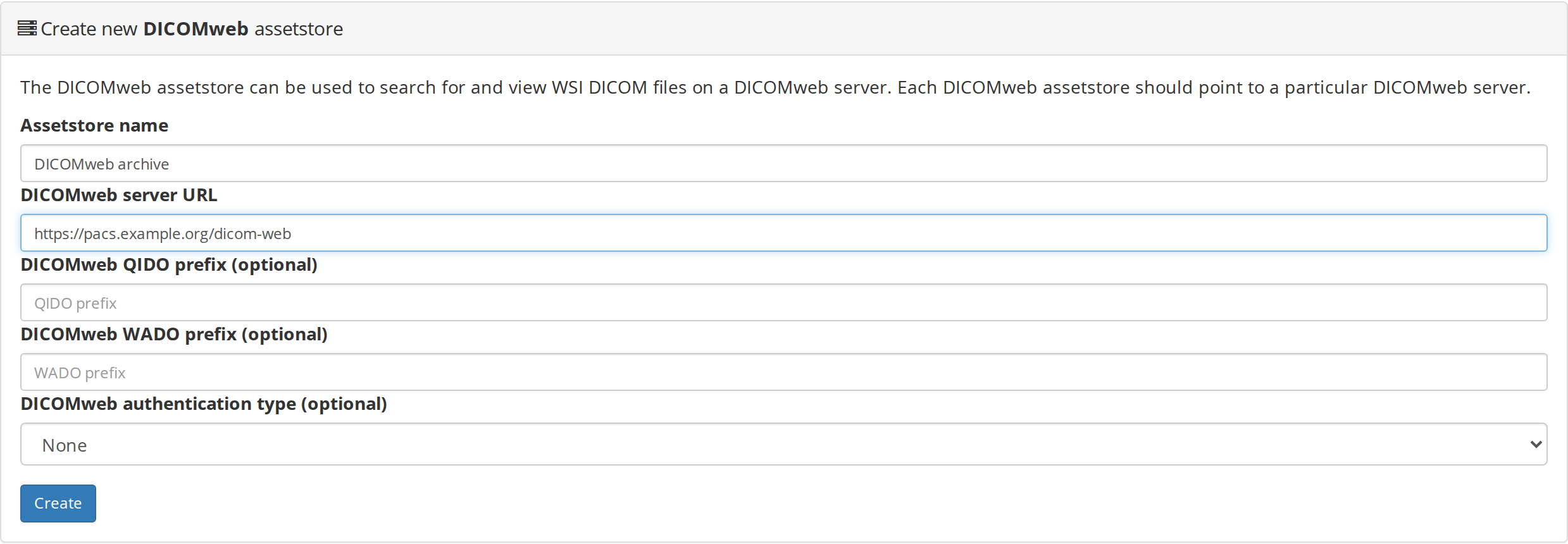
The fields are the assetstore name, the DICOMweb server URL, optional QIDO and WADO prefixes, and an optional authentication type. Create and edit these from Admin console → Assetstores. There is no restart.
The data stays on the DICOMweb server. DICOMweb assetstores are import-only and read-only: you cannot upload into them. The DSA database holds the assetstore record and any file records created when data is imported from the remote server. See Assetstores and storage for the backup implications.
Other settings you may see
The Plugins page also exposes configurations for Homepage, Hashsum Download, LDAP, OAuth2, User and Collection Quotas, and Large Image Annotation. They are outside the five settings groups this page covers, but the same rule applies:
- Display and policy values are usually database settings read per request.
- Anything that defines a mount, a login route, or a deployment address is read at startup and needs the container recreated.
- Credentials for LDAP, OAuth2, or SMTP belong in a secret store, not in a task comment or a screenshot.
Source and version
Settings and screens were checked on a live local DSA 5 instance on
2026-11-13. The large_image.max_thumbnail_files change was exercised and
reverted without a restart. The HistomicsUI root-path behavior was verified
against the plugin source (histomicsui/__init__.py, where the webroot is
mounted during load). The large-image cache variables were verified against
the running container environment and large_image's configuration
documentation. Compose restart/recreate behavior was checked on the running
stack.
| Item | Value |
|---|---|
| DSA / Girder | 5.0.23.dev5+g70eb94dcd |
| HistomicsUI | 1.8.1.dev208+gee5f4c0da.d20261030 |
| large_image | 1.35.7.dev217+g09c6d7801 |
| Slicer CLI Web / Worker | 5.0.23.dev5+g70eb94dcd |
| Deployment files | devops/ver5 at 2e16b9a |
| Web address | http://localhost:8080 |