Upload or import images
There are four common ways to get images into the Digital Slide Archive. They fall into two groups:
- Upload copies the bytes into the DSA assetstore and creates the collection, folder, item, and file records.
- Import creates records that point at files that are already on a filesystem that DSA can reach. The bytes are not copied or moved.
Use this page to pick the right route, then follow the short procedure. Each route has a full reference page where the mechanics are covered in more detail.
| Route | Use it when | Copies data? | Who can do it |
|---|---|---|---|
| Drag and drop in the browser | You have a few slides on your computer and want them in DSA now. | Yes | Anyone with Can edit on the destination folder |
Upload with girder-client |
You are scripting an upload, moving dozens or hundreds of slides, or running from another server. | Yes | A user or service account with an API key |
| Upload with the REST API | You are integrating another system and do not want a Python dependency. | Yes | A user or service account with an API key |
| Import from a bind-mounted data store | The slides already live on the DSA host or a mounted NAS/NFS share and are too large or too numerous to copy. | No | An administrator, with host-level access to add the mount |
The single most important distinction
An uploaded file belongs to DSA's assetstore. Deleting the item or file in DSA deletes that copy.
An imported file stays where it is. Deleting the DSA item or file removes only the DSA record; the file on disk is untouched. That is convenient for large reference data, but it also means DSA's permissions do not protect the underlying files from anyone who can read the host or NFS mount.
Before you start
DSA organizes everything in one hierarchy:
- Uploading a file into a folder creates a new item for it.
- Uploading into an existing item attaches another file to that item.
- Importing a directory recreates the directory tree as folders and items, or treats each leaf folder as one item. You choose which behavior you want.
You need Can edit on the destination folder to upload. Importing is an administrator action and also needs write access to the destination.
For uploads, DSA writes new files to the current assetstore. A typical
single-machine install uses /assetstore inside the Girder container. The
default assetstore and its files are under devops/dsa/assetstore or
devops/ver5/assetstore on the host. Check free space there before a large
upload; importing does not consume that space for the image data, but the
database still grows.
Drag and drop in the browser
This is the right choice for a handful of slides.
- Open the collection and folder where the slides should go.
- Drag the slide files into the folder view, or use the folder's upload control and select the files.
- Keep the browser tab open until the transfer finishes. Whole-slide images are large; a slow upload is normal.
- Click the resulting item. If
large_imagerecognizes the format, the item page shows Open in HistomicsUI.
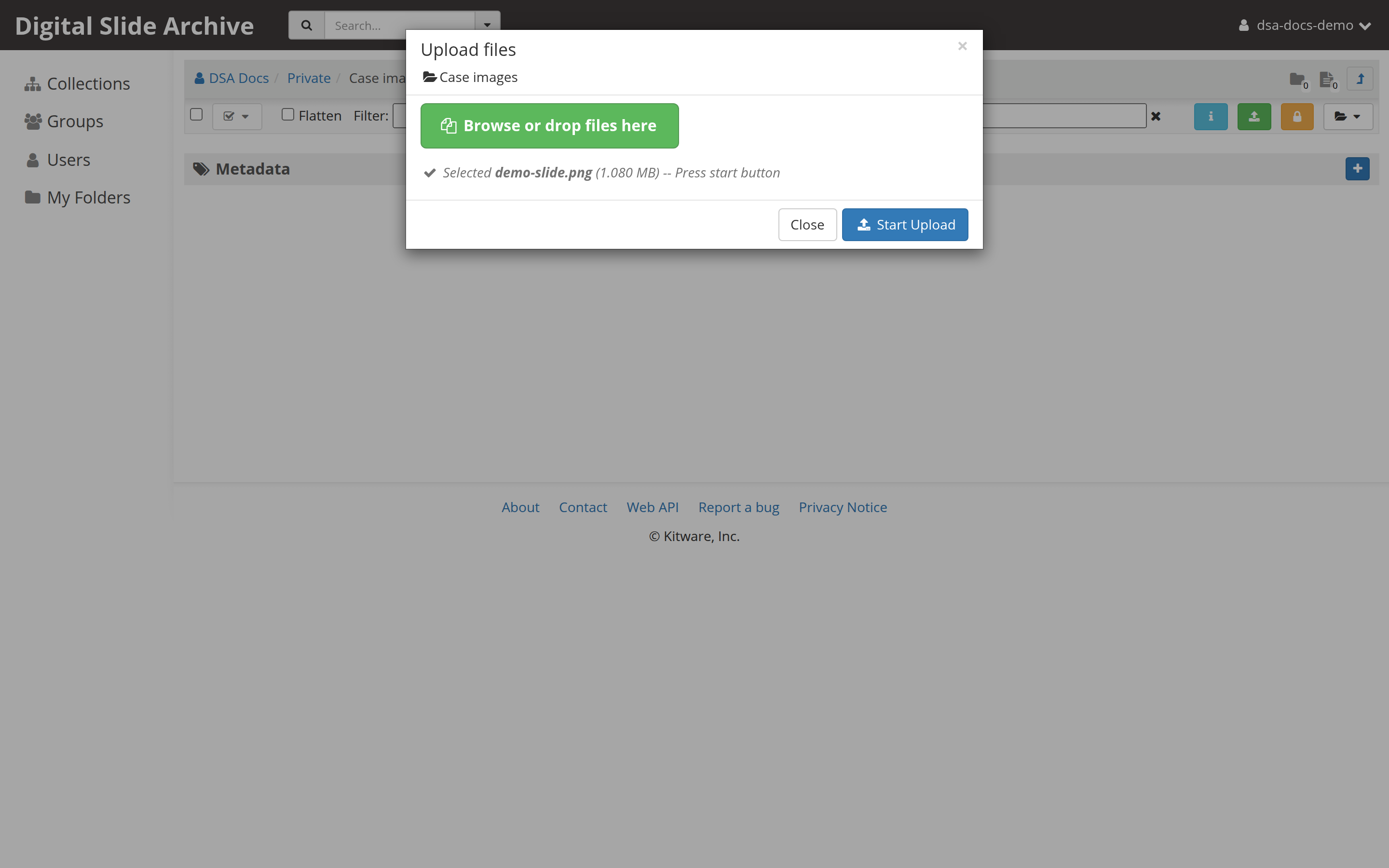
The upload dialog can resume an interrupted transfer. If the dialog has lost its upload record, it offers a restart instead. Closing the dialog aborts the partial upload. See Upload is interrupted and offers "Click to resume upload".
This route is covered step by step, including the first collection and folder, in Upload and view your first slide.
Upload with girder-client
girder-client is the supported Python client. It handles authentication,
chunk sizing, and the Girder upload routes.
import os

import girder_client

gc = girder_client.GirderClient(
    apiUrl=os.environ.get("DSA_API_URL", "http://127.0.0.1:8080/api/v1")
)
gc.authenticate(apiKey=os.environ["DSA_API_KEY"])

folder_id = gc.get(
    "resource/lookup",
    parameters={"path": "/collection/My Collection/My Folder"},
)["_id"]

item = gc.post(
    "item",
    parameters={"folderId": folder_id, "name": "my-slide.svs"},
)
gc.uploadFileToItem(item["_id"], "/data/my-slide.svs", mimeType="image/vnd.slide")
print("created item", item["_id"])
uploadFileToItem sends 64 MiB chunks and returns the final file record after
the last chunk. The server computes the SHA-512; the client does not supply
one. For API-key creation, error handling, downloads, and the full worked
script, see the Python client.
Use this route for scripted transfers and for moving a collection of slides from a workstation or another server. If the files are already on storage that DSA mounts, import them instead; uploading would make a second copy.
Upload with the REST API
The raw HTTP version is two calls: create the item, then send the file bytes.
export DSA_URL="http://localhost:8080/api/v1"

ITEM_ID=$(curl -s -X POST -H "Girder-Token: $DSA_TOKEN" \
  "$DSA_URL/item" \
  --data-urlencode "folderId=$FOLDER_ID" \
  --data-urlencode "name=my-slide.svs" \
  | jq -r '._id')

FILE_SIZE=$(stat -c%s my-slide.svs)
curl -s -X POST \
  "$DSA_URL/file?parentType=item&parentId=$ITEM_ID&name=my-slide.svs&size=$FILE_SIZE&mimeType=image%2Fvnd.slide" \
  -H "Girder-Token: $DSA_TOKEN" \
  -H "Content-Type: application/octet-stream" \
  --data-binary @my-slide.svs \
  | jq '{_id, name, size, sha512}'
For a large file, initialize the upload with an empty body and send 64 MiB
chunks to POST /file/chunk, as shown in the
REST API cookbook. The
same page covers the authentication flow, chunk minimum size, checksum
expectations, and error responses.
Use this route when another application needs to upload directly and adding a
Python client is undesirable. It performs the same copy into the current
assetstore as the browser and girder-client routes.
Import from a bind-mounted data store
Use import when the images are already on the DSA host or on a NAS/NFS share that the host mounts. Importing does not copy the bytes. DSA records an absolute path inside the container and serves the image from that path.
This has three parts: make the directory visible inside the containers, create a filesystem assetstore at that location, and run an import.
1. Bind-mount the directory
Add the same mount to the girder and worker services in a
docker-compose.override.yml next to the stack's docker-compose.yml:
Use the same container path in both services (/data/slides above). The
worker needs that path for analysis jobs that read the slide files directly;
if the paths differ, tasks can be queued and then fail to read their input.
Apply the override with the normal Compose command for your stack, for example:
The directory must be readable by the container user, and the assetstore root
must be writable by it. Girder validates a new assetstore by writing into the
root directory. On an NFS mount with root squash, create the directory as the
same numeric UID and GID as DSA_USER and grant that user write access. A
read-only mount fails assetstore creation even if you only intend to import.
Plan for the worker and the backup
A mount that exists only in the girder service is enough to browse and
import, but not enough for analysis jobs. Add it to worker as well, and
keep the path identical.
Because the files stay outside DSA's own assetstore, your normal
assetstore/ backup does not include them. Back up the mounted share
separately.
2. Create a filesystem assetstore
In the browser:
- Open Admin console → Assetstores.
- Under Create new Filesystem assetstore, enter a name such as
Slides on NASand the container root path, for example/data/slides. - Select Create.
Or create it with the API. type=0 is the filesystem assetstore type:
export ASSETSTORE_ID=$(curl -s -X POST -H "Girder-Token: $DSA_TOKEN" \
  "$DSA_URL/assetstore" \
  --data-urlencode "name=Slides on NAS" \
  --data-urlencode "type=0" \
  --data-urlencode "root=/data/slides" \
  | jq -r '._id')

echo "$ASSETSTORE_ID"
Leave the existing assetstore as current so new browser and API uploads
still go to /assetstore. A newly created assetstore is not current unless it
is the first one on the server.
3. Run the import
In the browser, open Admin console → Assetstores, find the assetstore you just created, and select Import data. Fill in:
- Import path — an absolute path inside the Girder container, such as
/data/slides/2026. It may be the assetstore root or a subdirectory. The path can even be outside the assetstore root, but keeping it inside makes the relationship between the assetstore and its files obvious. - Destination type —
Folder,Collection, orUser. - Destination ID — the destination resource's id. The browse button finds it for you.
- Leaf Folders as Items — see the next table.
The import runs as a background job. Progress and the import history are available from Admin console → Jobs, and each assetstore has an Imports view. A small import can finish in seconds; a large tree can run for a long time.
Leaf Folders as Items controls how nested directories map into DSA:
| Value | Result | Use it for |
|---|---|---|
False |
Every source directory becomes a DSA folder. Every file becomes an item. | A directory tree of individual slide files where you want the same folders in DSA. |
True |
A directory that contains only files becomes one item holding those files. | Formats where one slide is a directory of companion files, such as .mrxs, or a DICOM series. |
You can import one file by giving its path instead of a directory. DSA creates an item for it in the destination.
To start the same import with the API:
curl -s -X POST -H "Girder-Token: $DSA_TOKEN" \
  "$DSA_URL/assetstore/$ASSETSTORE_ID/import" \
  --data-urlencode "importPath=/data/slides/2026" \
  --data-urlencode "destinationId=$FOLDER_ID" \
  --data-urlencode "destinationType=folder" \
  --data-urlencode "leafFoldersAsItems=true" \
  --data-urlencode "progress=true"
The request returns once the job is queued; it does not wait for the whole
tree. Optionally add fileIncludeRegex or fileExcludeRegex to filter
filenames. On DSA 5 the import-tracking plugin also accepts excludeExisting
to skip paths that are already imported elsewhere.
4. Verify the import
Open the destination folder in the browser and click an imported item. The item should open in HistomicsUI exactly like an uploaded slide.
With the API, check the file record. Imported files have imported: true and
an absolute path; they normally have no sha512 unless the optional
hashsum_download plugin computed one:
curl -s -H "Girder-Token: $DSA_TOKEN" \
  "$DSA_URL/assetstore/$ASSETSTORE_ID/files?limit=5" \
  | jq '.[] | {name, size, imported, path}'
The path shown is the path inside the container. Do not remove or rename the source file after importing, and keep the mount available at the same path on every restart. If the path disappears, the item remains in DSA but its tiles and downloads fail.
Import caveats
- No copy, no checksum by default. DSA does not copy the bytes and does not verify them against a stored checksum unless the hash plugin is installed.
- Deleting the item does not delete the file. Remove data on the share separately when you really mean to delete it.
- Permissions are separate. DSA access controls govern the DSA records. Anyone with read access to the host or NFS share can read the files outside DSA.
- One slide per item. If a format stores a slide as a directory of files,
set Leaf Folders as Items to
True; otherwise the companion files become separate items and the viewer cannot assemble the slide. - The assetstore can be import-only. Imported files can live in a non-current assetstore. New uploads continue to use the current one.
S3 assetstores support the same import concept with a key prefix instead of a filesystem path. That path is not covered by this tutorial.
Which route should I use?
- A few slides on my laptop → drag and drop.
- Hundreds of slides on a workstation or another server →
girder-client, so the transfer is scripted and repeatable. - Another application needs to push images → REST API.
- The images are already on the DSA host, a NAS, or an NFS share → import from a bind-mounted filesystem assetstore.
- The images are in an S3 bucket → create an S3 assetstore and import from its prefix. The REST API cookbook covers the assetstore object; S3 import is source-verified only.
Related
- Upload and view your first slide: the first browser upload, collection, and folder.
- Python client: the complete
girder-clientrecipe, including authentication and error handling. - REST API cookbook: raw HTTP upload, chunking, metadata, and assetstores.
- Troubleshooting: Upload and import: fixes for interrupted transfers, full assetstores, and missing import paths.
- Permissions and access control: who can see and edit the destination.
Source and version
This page combines the browser upload walkthrough already on this site with the filesystem import implementation in Girder and DSA.
- Upload routes:
girder/api/v1/file.pyandgirder/api/v1/item.pyat Girder70eb94dcd;girder-client5.0.22 and 5.0.23.dev5. Verified against a local DSA 5 stack on 2026-11-02; see the REST API and Python client pages. - Import UI and filesystem adapter:
girder/web/src/templates/body/filesystemImport.pug,girder/utility/filesystem_assetstore_adapter.py, andgirder/api/v1/assetstore.pyat Girder70eb94dcd. - Import tracking and the
excludeExistingparameter:DigitalSlideArchive/import-trackerat055e395. - Mount example:
devops/ver5/docker-compose.ymland the customization section ofdevops/dsa/README.rstat DSA2e16b9a.
Verified on 2026-11-06 against the local DSA 5 stack
(Girder 5.0.23.dev5+g70eb94dcd): created a filesystem assetstore rooted at
a bind-mounted directory, imported a two-file leaf folder with
leafFoldersAsItems=true, confirmed the resulting item and file records
(imported: true and an absolute path), and deleted the test collection
and assetstore without deleting the source files.
Not tested: S3 import, read-only mounts, and import against a remote filesystem that is not mounted at the same path in the worker.