Share a collection or folder
A collection or folder is visible only to you until you grant access. Sharing means adding a user or a group to its Access control list and choosing a role. Items inherit access from their folder, so you usually share the folder once and every slide inside it becomes available.
Use this tutorial when a collaborator says "I can't see the study" or when you need to let someone annotate without letting them edit or delete data.
Before you start
- You are signed in. If not, start with Connect to a DSA server.
- You have Is owner (admin) access to the collection or folder. The person who created it normally does.
- You know whether to share with a user or a group. For a lab, course, or recurring project, create a group and share with the group once; membership changes then apply everywhere the group has access.
- You have decided how much access to give:
| Role in the dialog | Girder level | What it allows |
|---|---|---|
| Can view | READ |
View and download the collection or folder and its contents. |
| Can edit | WRITE |
Everything in Can view, plus edit properties, add folders and items, and annotate (unless access flags say otherwise). |
| Is owner | ADMIN |
Everything in Can edit, plus delete the resource and change its access list. |
Permissions are additive. A user gets the highest level granted to them directly or through any group they belong to. A site administrator can always take any action.
1. Open the Access control dialog
For a collection:
- Select Collections in the top navigation.
- Select the Actions button at the right end of the action bar. Its tooltip is Collection actions.
- Select Access control.
For a folder, open the folder and select the lock icon button in the folder's action bar. Its tooltip is Access control.
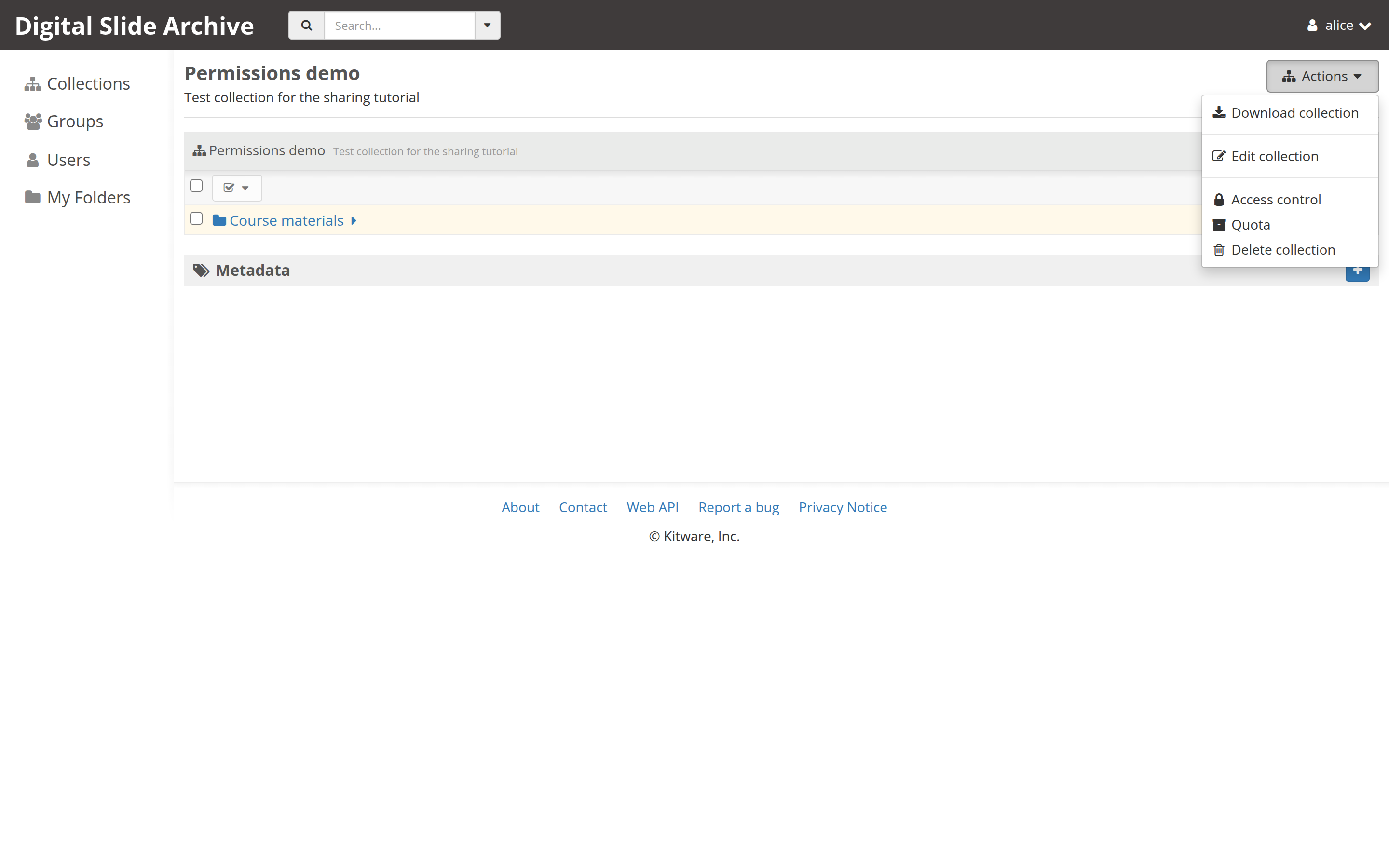
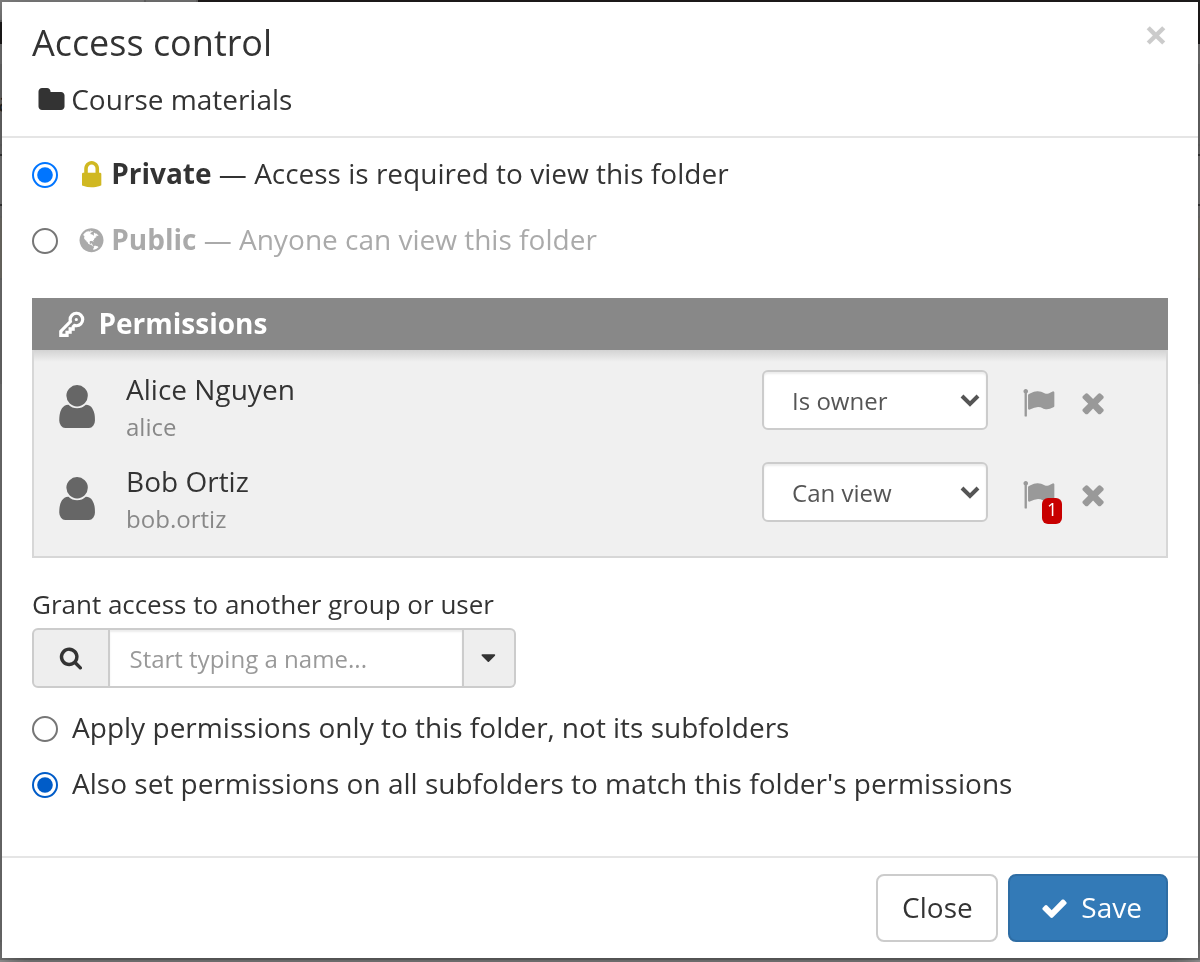
The dialog is titled Access control and shows the collection or folder name under the title.
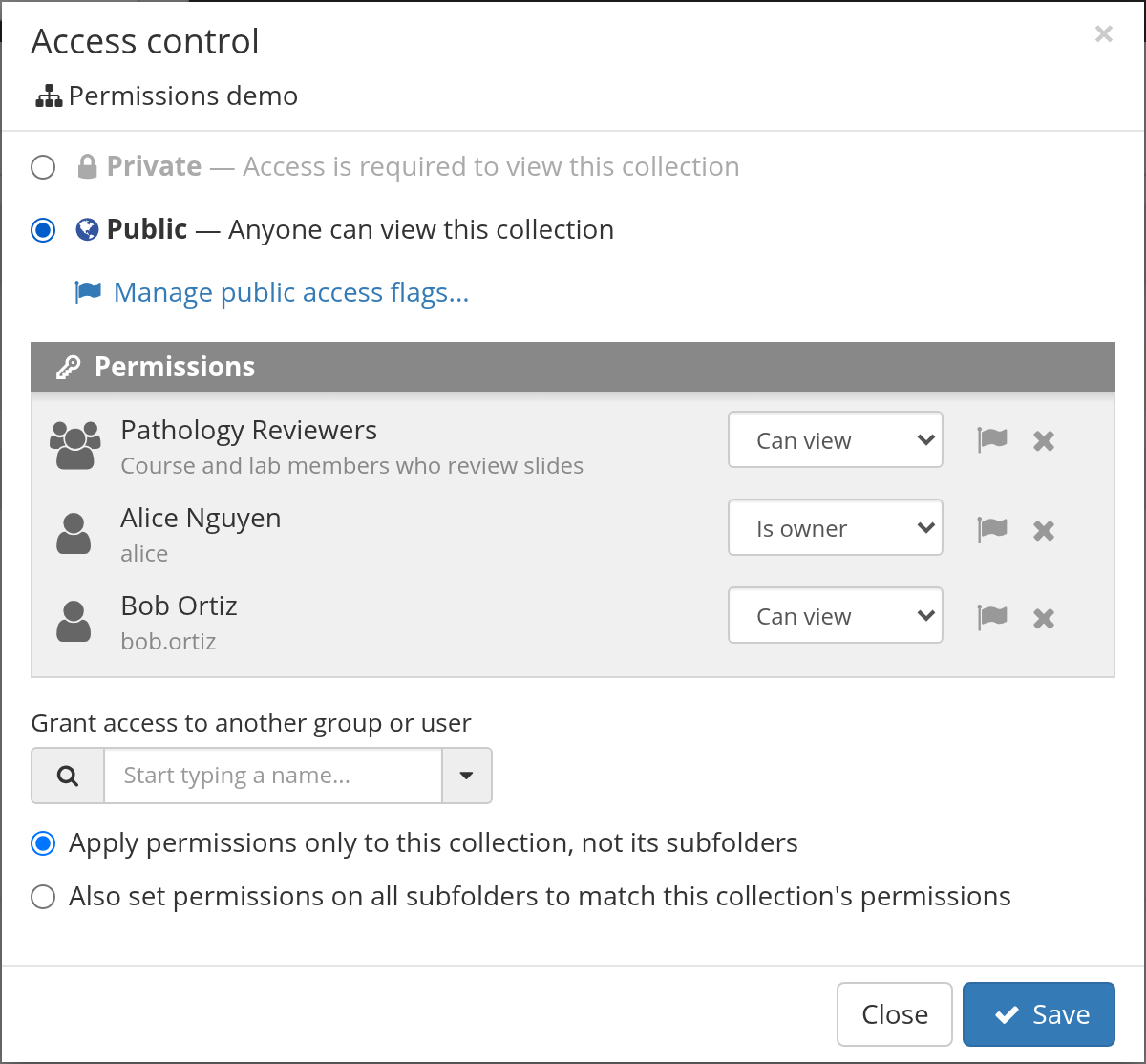
2. Choose Private or Public
The top of the dialog has two choices:
- Private — Access is required to view this collection/folder. This is the default for a new collection.
- Public — Anyone can view this collection/folder. This includes anonymous visitors who are not signed in.
Public grants view access. It does not grant edit or owner access by default. When Public is selected, a Manage public access flags... link appears; it can grant a specific capability, such as Create annotations, to anonymous visitors. Leave it alone unless you intend that. Otherwise, keep the resource private unless you specifically want unauthenticated visitors to see it.
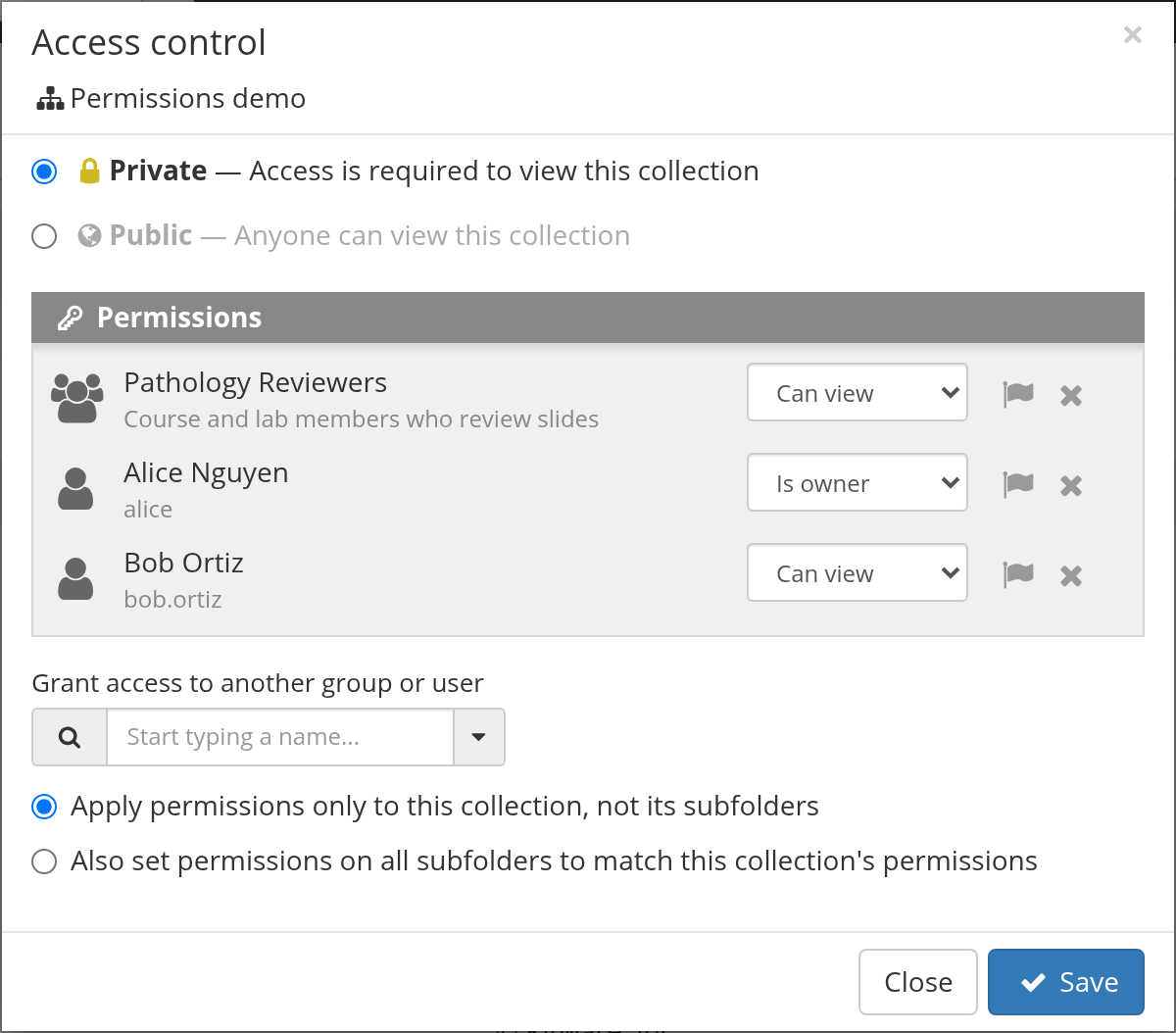
3. Grant access to a user or group
- In Grant access to another group or user, start typing a name. The search matches both users and groups.
- Select the person or group from the results.
- They appear under Permissions. Use the drop-down beside the entry to set Can view, Can edit, or Is owner.
- Repeat for every person or group that needs access.
Prefer one group over many individual entries. A group keeps the access list short and makes onboarding and offboarding a membership change instead of a per-resource edit.
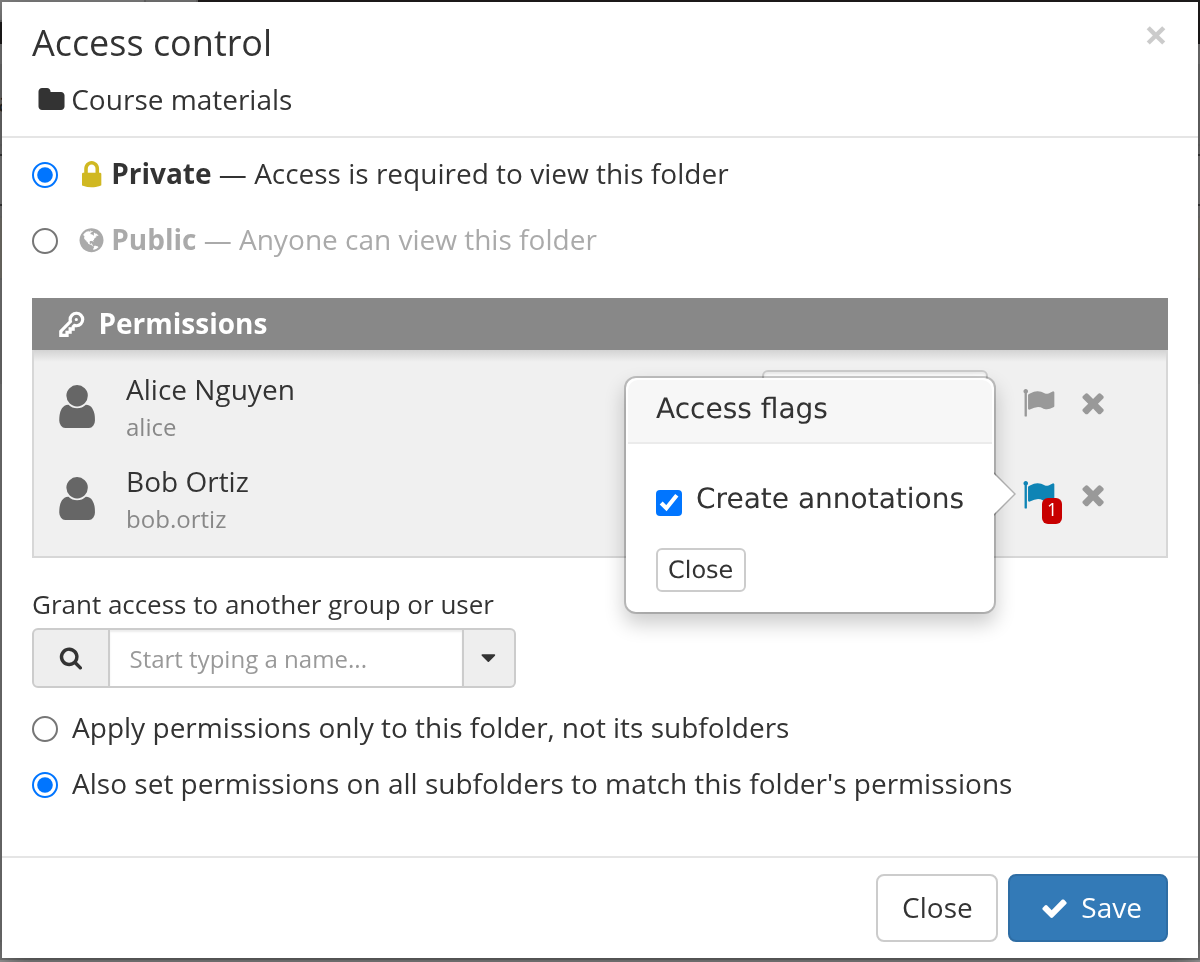
4. Optional: grant an access flag
Some actions can be allowed without full Can edit access. Select the flag icon beside a user or group to open Access flags. The DSA annotation plugin registers Create annotations, which lets a user add annotations while leaving the rest of the folder read-only.
Flags are additive: granting a flag never reduces a role. Use a flag when a reviewer should annotate but not rename, move, or delete slides.
5. Choose what happens to subfolders
The dialog asks how far the change should reach. The wording follows the resource: for a folder it says this folder, and for a collection it says this collection and covers the folders inside it.
- Apply permissions only to this folder, not its subfolders — the current folder changes; subfolders keep their existing lists.
- Also set permissions on all subfolders to match this folder's permissions — the same list, including access flags, is written to every subfolder you have admin access to.
The second option replaces the access list on subfolders rather than merging it. If a subfolder has a deliberately different list, choose the first option and edit that subfolder separately.
6. Save and verify
Select Save. Then confirm the result:
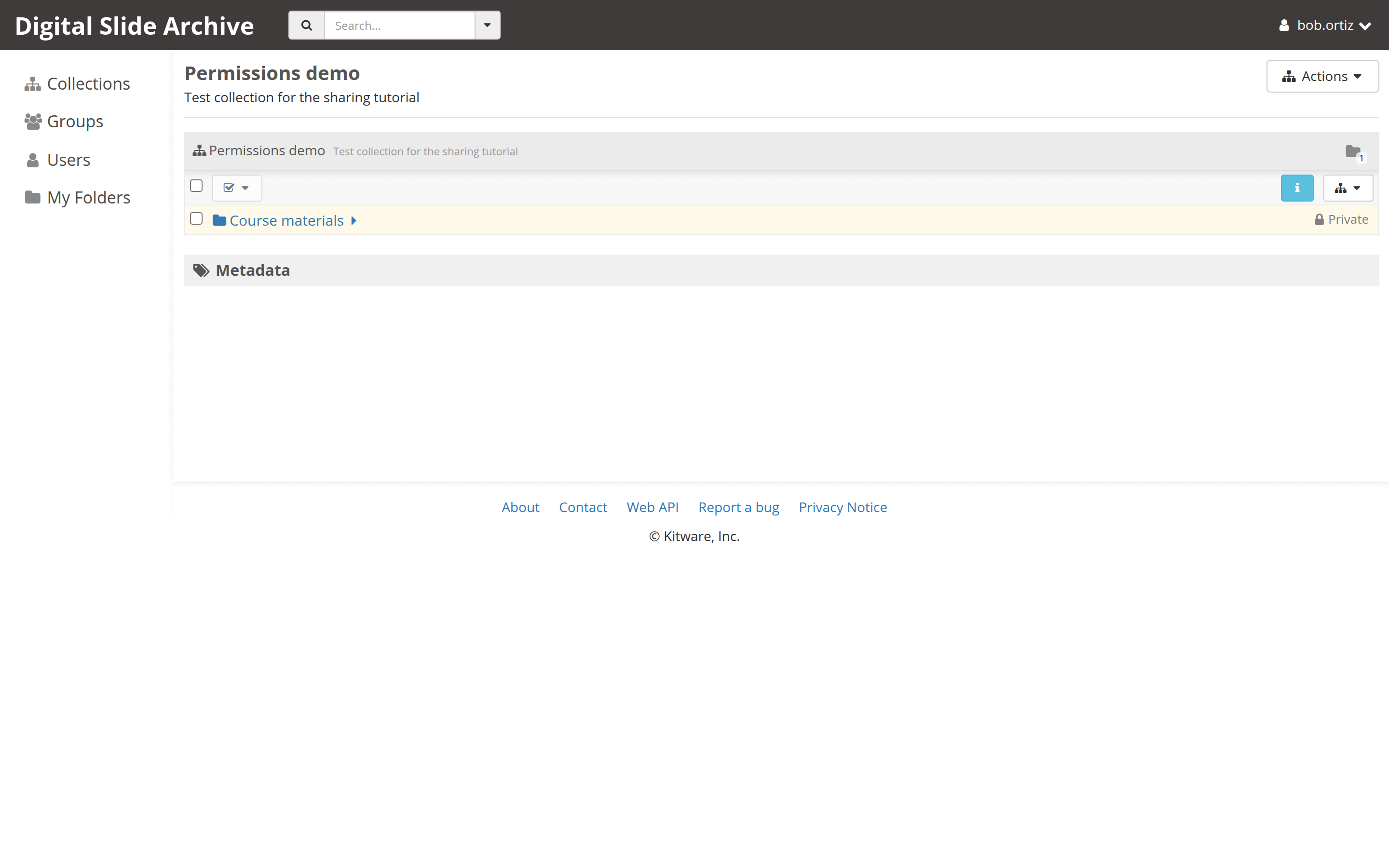
- The other person can sign in and find the collection in Collections.
- A Can view user can open the collection and its folders. In the live test the action menus offered only Download collection and Download folder, with no edit or delete items.
- A Can edit user can add a folder or edit metadata.
- If the folder was made public, open its URL in a private browser window. You should be able to see it without signing in.
Sharing one item instead of a whole folder
Items do not have their own access list; they inherit from the containing folder. To share a single slide without exposing the rest of a folder, create a separate folder, copy or move the slide into it, and share that folder.
Annotation access behaves differently
Annotations are not plain items. Each annotation stores its own access list and public flag, copied from the containing folder when the annotation is created. The creator is then given admin access to that annotation.
This has consequences that surprise people:
- Sharing a folder later does not give collaborators access to annotations that already exist there. They see the slides but not the old annotations. Annotations created after the share are visible.
- Removing someone's folder access does not remove them from existing annotation access lists, although they still need folder read access to reach the annotations.
- Moving an item or annotation does not change the annotation's access list.
- Copying an item or folder copies annotations and gives the copies the destination folder's access, not the original annotation's access.
If you need to change access for existing annotations across a folder, use the folder's Annotation access control action (available when you have admin access to annotations in that folder). It replaces the access list on every annotation it covers, so anyone omitted loses access. Subfolders are included only when you check the subfolder option, and the dialog closes as soon as the request is sent without waiting for the result.
Troubleshooting
| Symptom | Likely cause | Fix |
|---|---|---|
| Access control is missing from the action menu | You do not have Is owner access | Ask the collection or folder owner, or a site administrator, to grant it or make the change. |
| A collaborator still cannot see the collection | The entry was added to the wrong resource, the role is not saved, or they are signed in as a different account | Reopen Access control, confirm the entry and role, and have them refresh after signing in with the right account. |
| A collaborator can see slides but not annotations | Annotations were created before the folder was shared | Use Annotation access control for the existing annotations, or create new annotations after sharing. |
| A collaborator can view but cannot annotate | They have Can view, not Can edit, and no Create annotations flag | Raise the role to Can edit or grant the Create annotations access flag. |
| A subfolder kept its old access | The non-recursive option was chosen | Reopen the parent dialog and choose the subfolder option, or edit the subfolder directly. |
| Changing a folder did not change old annotations | Annotation access is copied at creation time | Use the folder's Annotation access control action. |
Next
Verified status
Live-tested on 2026-11-02 against a local DSA 5 stack (Girder
5.0.23.dev5+g70eb94dcd, large_image 1.35.7.dev217+g09c6d7801) with two
non-admin accounts: Alice as the collection owner and Bob as the collaborator.
The test covered the collection and folder Access control dialogs, the
private/public choice, adding a user and a group, applying Can view, setting
the Create annotations flag, and the recursive subfolder option. Bob could
see the shared collection, folder, and subfolder; his action menus offered only
download, and he received 403 when he tried to rename or delete them.
Anonymous access to a public collection returned the collection tree and
refused writes. The screenshots on this page come from that run; the test data
was created for the run.
Not exercised: the folder's Annotation access control bulk dialog. The
annotation ACL rules below are source-verified against girder/large_image
docs/girder_annotation_access.rst at commit f4ad903. Dialog labels were
also checked against Girder AccessWidget.js and the accessEditor templates
at commit 70eb94d.