Edit metadata
Metadata is a set of key and value pairs attached to an item, folder, or collection. Use it for information that does not belong in the file itself: case numbers, stain names, scanner settings, project codes, or review status.
Metadata is not embedded file metadata
DSA metadata is stored in the archive database alongside the resource. It is separate from technical metadata inside the image file, such as EXIF or OME-XML. Editing one does not edit the other.
Before you start
- You are signed in. If not, start with Connect to a DSA server.
- You have write access to the resource. Without it, the add and edit controls are hidden.
You can attach metadata to:
- an item (one slide or data object),
- a folder,
- a collection.
The controls are the same; only the page changes.
1. Open the resource
Open the item, folder, or collection. On an item page, scroll past Info to the Metadata section. On a folder or collection page, the Metadata section is below the list of folders and items.
2. Add a simple value
- In the Metadata header, select the + button. Its tooltip is Add Metadata.
- Choose Simple.
-
In the new row, enter a Key and a Value. For example:
Key Value case_idK-2026-014stainH&E -
Select the check mark button to save the row. The X button cancels it.
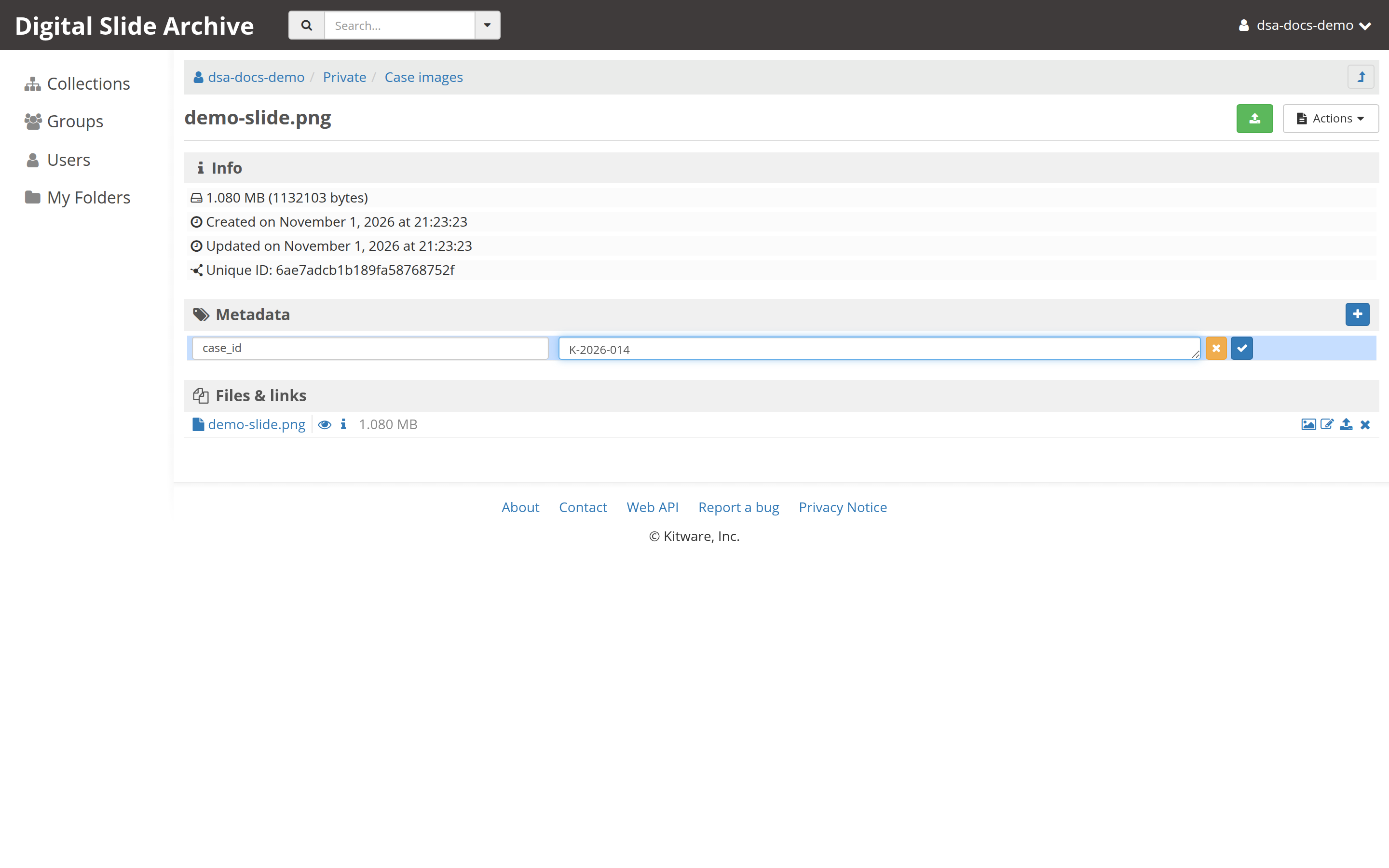
Saving happens per row. There is no page-level Save button, so add each key and accept it before moving on.
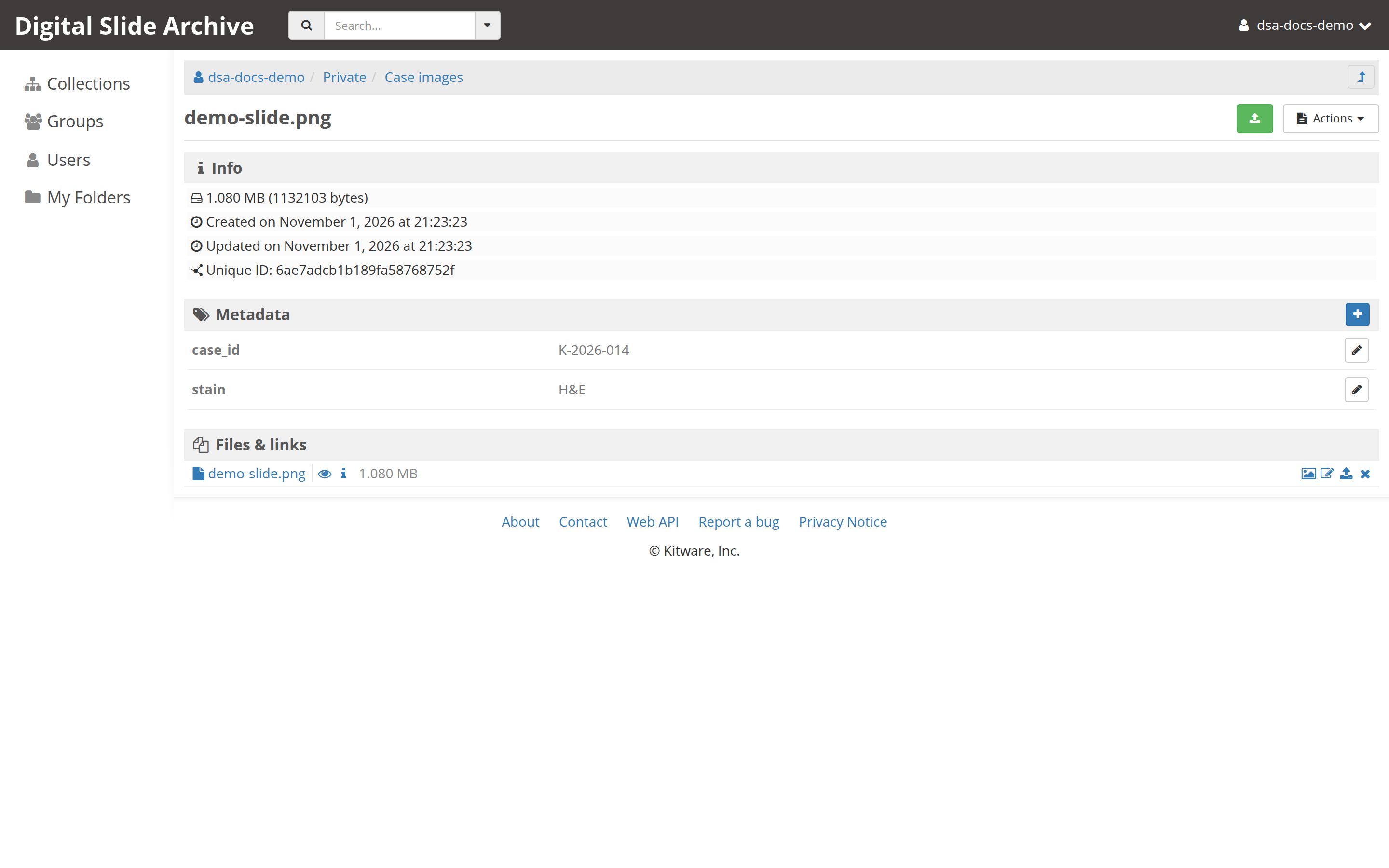
3. Edit an existing value
- Select the pencil icon at the left of the row.
- Change the key, the value, or both.
- Select the check mark to save, or the X to discard the change.
Use this to correct a typo or update a status. Changing a key is allowed; it is not linked to anything else, so no other resource is affected.
4. Add a structured value
If a value needs to be a list or a nested object, add it as JSON instead:
- Select + and choose JSON.
- Enter the key.
- Enter the value in the JSON editor. The editor offers a code view and a tree view.
- Save the row.
For example, a key stains could hold:
The key rules below still apply. The value can be any valid JSON value.
5. Delete a value
- Select the pencil icon on the row.
- Select the trash button.
- Confirm if prompted.
Deleting a metadata key affects only that resource. Copies made earlier keep their own copy of the metadata.
Rules and behavior
- Keys must not be empty.
- Keys must not contain a period (
.). DSA uses dots for nested database paths. Use underscores instead, for examplecase_id, notcase.id. - Keys must not start with
$. - A key is unique within one resource. Saving the same key again replaces the value.
- Metadata belongs to the resource you edit. Editing an item does not change its parent folder.
- Copying an item copies its metadata to the new item. See Copy an item.
6. Verify the result
- The saved row shows the key and value, and stays after a page reload.
- At the API level,
GET /api/v1/item/<id>returns the pairs inside the item'smetaobject. The same applies tofolderandcollection. - If you edit an item that has been copied, confirm that the original and the copy now differ as expected.
Troubleshooting
| Symptom | Likely cause | Fix |
|---|---|---|
| There is no + button in the Metadata header | You have read access only | Ask for write access to the resource. |
| The check mark does not save | The Key field is empty | Enter a key and select the check mark again. |
An error mentions "." in the key |
The key contains a period | Replace periods with underscores. |
| The JSON row will not save | The value is not valid JSON | Fix the syntax, or switch the row to Simple if the value is plain text. |
| A change disappeared | You selected X, or navigated away before saving | Edit the row again and select the check mark. |
| The value you see differs from the file's embedded metadata | They are separate systems | The Metadata panel is authoritative for DSA metadata; file-internal metadata is not changed by it. |
Next
Verified status
Live-tested on 2026-11-01 against https://pub-data.bdsa.io/ (Girder API
5.0.20.dev2+ge191b30e7) with a signed-in test account and headless Chromium.
Added two simple values (case_id and stain) to an item, saved each row, and
confirmed both persisted after reload. The screenshots above come from that
run. The controls and key rules also match the Girder 3.x-maintenance source
at 71e5fba.